Using the Spot Database
SpotCollector
Online Help
Contents
Spots arriving from spot sources
are used to create entries in SpotCollector's Spot Database. Each Spot Database Entry
represents a single DX station operating in the same mode around the same frequency over an interval of
time. When a spot arrives, SpotCollector
-
discards it if its too
old (make sure your PC is set to the correct time zone and local time!)
-
discards it if
Pre-filtering is enabled and it matches one
of the Pre-filtering criteria
-
checks to see if there's already a Spot
Database Entry for the spotted DX station in the same mode around
the same frequency that is still
active
-
if so, the existing entry is updated
-
if not, a new entry is created
The information recorded in a Spot Database
Entry is obtained from
-
the incoming
spot, e.g. DX station's callsign, frequency,
mode, time, spotting
station's callsign
-
the incoming
spot's notes (if
enabled)
-
a specified
DXKeeper log, e.g. award progress for the DX station's entity,
entity-band, and entity-mode
-
performing a DXCC
or USAP Database lookup on the DX callsign's (if
enabled), e.g. DX station's DXCC prefix, gridsquare,
CQ zone, ITU zone, IOTA
tag, continent
-
performing a DXCC
or USAP Database lookup on the spotting station's callsign (if
enabled), e.g. spotting station's gridsquare
A table describing each of a Spot Database
Entry's fields is available here.
DXClusters running DX
Spider software can be configured to append the spotting station's
Maidenhead gridsquare to each spot. DXKeeper can properly decode spots with
appended gridsquares, and will record such gridsquares in the Spot Database's
OriginGrid field. To enable a cluster running DX Spider to append spotting
station gridsquares, enter
the following command:
set/dxgrid
Access to and management of the Spot Database
is accomplished via controls in the Spot Database
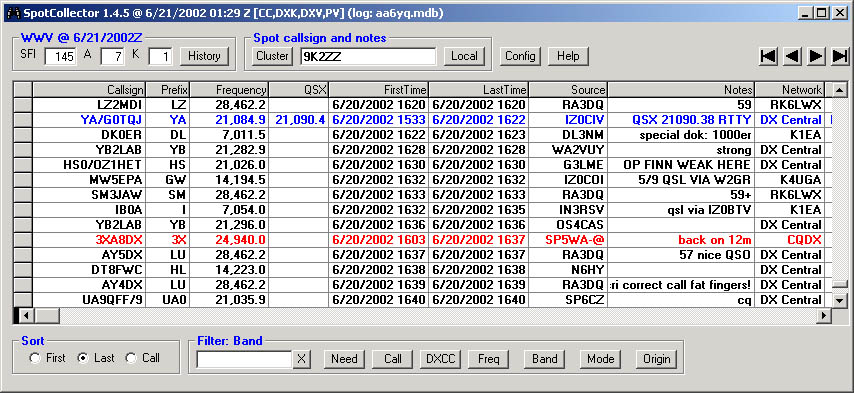
Window . The most important of these controls is the Spot Database Display -
a grid that displays several Spot Database entries. Expanding the height of the
Spot Database window will increase the number of Spot Database entries visible
in the Spot Database Display, and expanding the width of this window will
increase the number of fields visible in each entry. You can reformat
the Spot Database Display's field order and field widths.
The Spot Database Display shows a subset of
all Spot
Database Entries ; the number of QSOs in this subset is displayed in the
main window's title bar. Specifying this
subset is referred to as Filtering the
Spot Database. You can control the order
in which entries appear in the Spot Database Display, as well as the order
of the columns used to display each entry's contents. Whether all columns in the
Spot Database Display will be simultaneously visible depends on their number and
width, as well as the width of the Main window. If all columns are not simultaneously
visible, a horizontal scrollbar will be
displayed along the bottom of the Spot Database Display; you can use this scrollbar
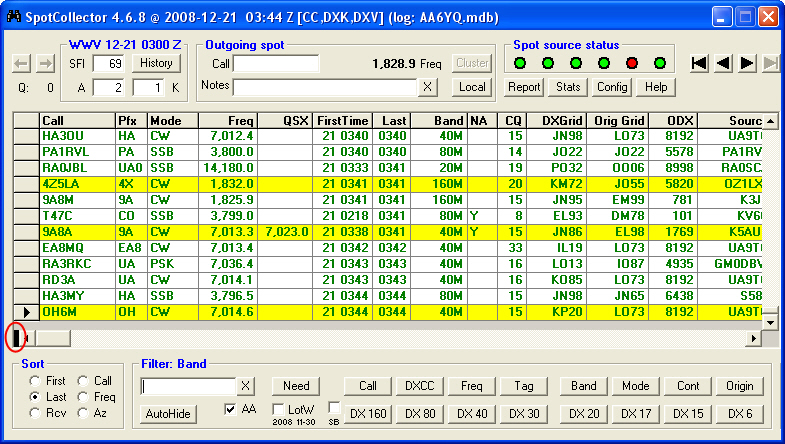
to select the columns you wish to see. The small
black rectangle to the left of the horizontal scrollbar can be dragged to the
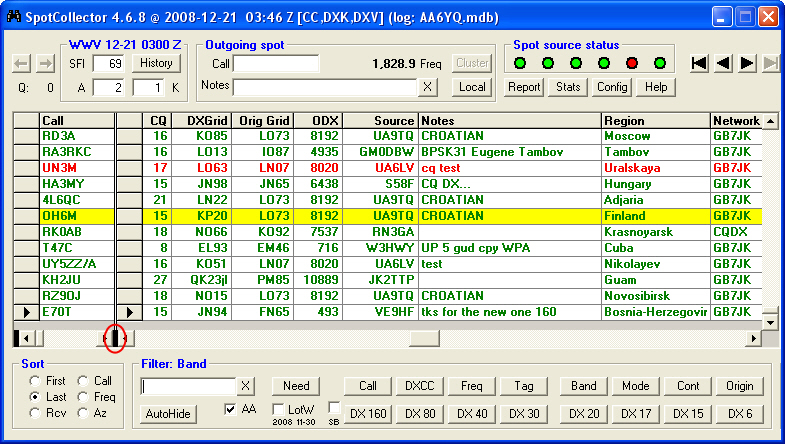
right to split the Spot Database Display into two independently scrollable sets of
columns. You can adjust the boundary between the two sets by dragging the black
rectangle to the left of the horizontal scrollbar at the bottom of the
right-hand set of columns; to eliminate the right-hand set of columns, drag its
black rectangle all the way to the left.
DXLab provides Realtime Award Tracking
service for seven award families and for callsign leaderboard competitions. The
creation of a Spot Database Entry for a station with whom a QSO would advance
your progress towards one of these awards or competitions can trigger and
audible announcement or email message; such an Entry will be highlighted as needed.
Callsigns whose leaderboard board
competitions you're pursuing are identified with an entry in the Special
Callsign List tagged with Leaderboard.
SpotCollector interoperates with DXKeeper,
DXLab's logging program, to obtain
-
ARRL
DXCC objectives, which indicate whether or not
you are pursuing confirmed QSOs on the
reported band and mode, as specified in
the DXCC/Top Bands & Modes panel on the Awards tab of
DXKeeper's Configuration window
-
ARRL
VUCC objectives, which indicate whether or not you are pursuing
QSOs on the reported band, as specified on the VUCC
Bands & Modes panel on the Awards tab of
DXKeeper's Configuration window
-
ARRL
WAS objectives, which indicate whether or not you are pursuing
QSOs on the reported band and mode, as specified on the WAS
Bands & Modes
panel on the Awards tab of
DXKeeper's Configuration window
-
CQ
DX Marathon objectives, which indicate whether or not you are pursuing
QSOs on the reported band and mode, as specified on the Marathon
Bands & Modes panel on the Awards tab of
DXKeeper's Configuration window
-
CQ
WAZ objectives, which indicate whether or not you are pursuing confirmed
QSOs on the reported band and mode, as specified in the WAZ
Bands & Modes panel on the Awards tab of
DXKeeper's Configuration window
-
CQ
WPX
objectives, which indicate whether or not you are pursuing
QSOs on the reported band and mode, as specified on the WPX
Bands & Modes
panel on the Awards tab of
DXKeeper's Configuration window
-
IOTA objectives, as specified on the IOTA
panel on the Awards tab of
DXKeeper's Configuration window
-
realtime award tracking
- information indicating
-
whether or not you've worked and/or confirmed
a spotted station's CQ country, CQ zone, DXCC entity, Maidenhead
Gridsquare, OTA Group, US State, or WPX Prefix on the reported band or
mode
-
whether or
not you've worked the spotted station on the reported band or mode
Award objectives are
determined from information DXKeeper maintains in the Windows registry; thus
DXKeeper need not be running for SpotCollector to appropriately characterize
spots. realtime award tracking
information is obtain from a DXKeeper log file. You can configure
SpotCollector to
-
consult the log
file that was last opened by DXKeeper, and automatically switch to any new
log opened in DXKeeper
-
ask the operator
to choose when a log is opened in DXKeeper that is different than the one
currently being consulted by SpotCollector
-
specify a log
file to be consulted independently of what log file was last opened in
DXKeeper
If you use only one
log file in DXKeeper, then SpotCollector's out-of-the-box setting is appropriate
(ask the operator for guidance when a log is opened in DXKeeper that is
different than the one currently being consulted by SpotCollector). If you use
DXKeeper to maintain logs of QSOs made from multiple DXCC entities, you'll find
it convenient to specify that SpotCollector always consult the log associated
with your home station; this keeps SpotCollector focused on the correct source
of award progress when you use DXKeeper to open one of the other logs for QSO
confirmation, QSL generation, or other activities.
The term counter refers to the object
of an award for which realtime award tracking
information is provided in the currently-open log:
-
for ARRL DXCC awards, the
counter is a DXCC entity
-
for ARRL VUCC
awards, the counter is a Maidenhead Gridsquare
-
for ARRL WAS
awards, the counter is a US State
-
for CQ WAZ awards, the counter is a CQ zone.
-
for CQ Marathon
awards, the counter is a CQ country or CQ zone
-
for CW WPX
awards, the counter is a WPX prefix
-
for RSGB IOTA
awards, the counter an IOTA Group
Using the
objectives specified on the DXCC/Top panel on DXKeeper's
Awards tab and realtime award tracking information from the specified
log, SpotCollector places each
Spot Database Entry into one of five categories:
-
unworked
counter:
a QSO with this station will be your first with an unworked counter towards
an award for which realtime award tracking
is enabled
-
unworked band
or mode:
a QSO with this station will be your first with the counter on
a band or mode or band-mode combination you're pursuing towards an award for which realtime award tracking
information is provided, or will be your first with a Leaderboard
callsign on the entry's band or in the entry's mode
-
unconfirmed:
a confirmed QSO with this station will advance your progress against your
objectives towards an award for which realtime award tracking
is enabled
-
unneeded:
a QSO with this station will not advance your progress against your
objectives towards an award for which realtime award tracking
is enabled, but you do not have award credit for the station's
counter, counter-band (if being pursued), counter-mode (if being
pursued), or counter-band-mode (if being pursued)
-
verified:
a QSO with this station will not advance your progress against your
objectives because for each award for which realtime award tracking
is enabled, you have QSOs to which the award
sponsor has granted credit with the station's counter,
counter-band (if being pursued), counter-mode (if being pursued), or
counter-band-mode (if being pursued)
SpotCollector considers the Entry for a
station that you've already worked on the Entry's band and in the Entry's mode
to be unneeded, because another QSO with this station on the
Entry's band and in the Entry's mode will not increase your chances of obtaining
a confirmation of the Entity's counter(s), counter-band(s), or counter-mode(s).
When the
currently-open DXKeeper log provides realtime award tracking
information for more than one award -- e.g. DXCC and WAZ -- a Spot Database Entry's
category is determined by the award for which the Entry is most needed.
The unworked counter category is considered the most
needed, and the verified category is considered the least needed.
By default, unworked
counter Spot Database Entries and unworked
band or mode or band-mode Spot Database Entries are rendered with a red font, unconfirmed
Spot Database Entries with a blue
font, and unneeded and verified
Spot Database Entries with a black font; you can modify these colors via the Configuration window's
Spot Database Display tab. A Color
codes panel summarizing these font colors is displayed to the right of the
Main window's Filter panel if window width permits; double-clicking the
phrase Color
codes directs SpotCollector to display the Configuration window's Spot
Database Display tab.
Spot Database entries that would give you a
duplicate QSO -- i.e. with a callsign you've already worked -- for an
unconfirmed band, mode, or counter are categorized as unneeded
rather than unconfirmed. For example, suppose you have already worked, but not yet confirmed
VU4DX on 20m SSB. Spot Database Entries for VU4DX on 20m SSB will be
rendered in black - even though you don't have VU4 confirmed; that's because
another QSO with VU4DX on 20m SSB will not advance your awards progress. However,
Spot Database Entries for VU4DY on 20m SSB would be colored blue, as working this
station would give you a new way to confirm VU4 on 20m and SSB.
There are three ways to
determine why a Spot Database Entry is colored unworked
counter, unworked band or mode or band-mode, or unconfirmed,
each revealing progressively more information:
-
Examine
the contents of the Entry's Needed field
(assuming it's present in the Spot Database Display):
-
D means the entry's
DXCC entity is
needed for a DXCC or TopList award
-
G
means the entry's Gridsquare is needed for a VUCC award
-
I
means the entry's IOTA Group is needed for an IOTA award
-
L
means the entry's callsign is the target of a Leaderboard competition
-
M
means the entry's CQ Country is needed for a Marathon award
-
N
means the entry's CQ Zone is needed for a Marathon award
-
P
means the entry's WPX Prefix is needed for a WPX award
-
S
means the entry's US State is needed for a WAS award
-
Z
means the entry's CQ Zone is needed for a WAZ award
-
Let
the mouse cursor hover for a few seconds over the Entry's callsign field; an
explanatory popup will appear that explains in more detail why the Entry is
needed
-
Right-click
the Entry and select the Display Award Tracking menu entry;
SpotCollector will display its Realtime Award Tracking
window, which shows progress towards each award for which realtime award tracking
information is provided in the currently-open log.
If you have never
installed or executed DXKeeper, then the Seek
everything setting determines whether SpotCollector assumes that every Spot Database Entry
is needed or unneeded.
SpotCollector can also generate an audio
alarm whenever a needed or special
Spot Database Entry is created. Settings in the Audio
Alarm panel on the Configuration window's Audio Alarm tab allow you to
-
enable or
disable the audio alarm, and automatically re-enable the alarm after 15
minutes
-
specify that the
award counters, band, and mode should be announced; if realtime award tracking
information is provided for more than one award in the currently open DXKeeper log and
a Spot Database Entry is
needed for more than one award, each award's counter is announced (e.g.
"Yemen, zone 39, on 12 meters, RTTY, Marathon"
-
specify that
only unworked counters should be announced, or that both unworked and
unconfirmed DXCC entities should be announced
-
suppress CQ
Marathon announcements (useful early in the year when the number of
countries and zones needed would be overwhelming if announced)
-
specify whether
the needed or special callsigns are to be announced letter by letter and if
so, whether phonetics should be used
-
specify a .wav
file to serve as the audio alarm instead of the DXCC country, band, and mode
announcement
-
specify that a
specific sound file be played after announcing a Spot Database Entry whose
callsign is known to participate in Logbook
of the World
-
specify that a
specific sound file be played after announcing a Spot Database Entry whose
callsign is known to participate in eQSL.cc
-
specify that the
alarm should be triggered whenever a newly-created unworked Spot Database Entry
is created, or only if this entry passes the Band,
Mode, Origin, Continent, LotW, and eQSL filters.
-
test the audio
alarm to verify proper volume settings
-
specify the
names of folders containing
-
the .wav
files used to announce entities, bands, and modes
-
the .wav
files used to announce callsigns alphanumerically
-
the .wav
files used to announce callsigns phonetically
Each Spot Database Entry includes award progress
information obtained the log
file referenced for award progress. If you modify or delete a logged QSO in DXKeeper,
SpotCollector is automatically directed to update this award progress
information. If you are planning to modify or delete many QSOs in DXKeeper, it
may be more efficient to disable
these automatic updates, perform
one update after all changes have been made, and then re-enable
automatic updates. If automatic updates are left
disabled, SpotCollector may incorrectly identify Spot Database Display entries
for needed stations.
If you change logs in DXKeeper while SpotCollector is
running, SpotCollector will give you the choice of continuing to check
progress against the previously-opened log, or switching to the new log.
The file LotW.mdb
is a database containing callsigns known to participate in the ARRL's Logbook
of the World (LotW); recent versions of this database include each
callsign's "date of last upload to LotW". If at startup, LotW.mdb
is present in DXView's Databases folder
or in SpotCollector's Databases folder, then SpotCollector
will set the LotW item of each Spot Database Entry it
creates to indicate whether or not the entry's callsign is a known Logbook
of the World participant; if LotW.mdb
is not present in DXView's or SpotCollector's Databases
folders, then each Spot Database
Entry's LotW item will be set to 'N'. If the LotW
Database includes "date of last upload to LotW" information, then you
can also specify
the maximum age of a station's last upload to LotW; callsigns listed in LotW
Database but with a "date of last upload" older than the specified age
will not be considered to be an LotW participant.
You
can obtain the most recent LotW.mdb
via the Databases tab of DXView's Databases
folder.
By default, Spot Database Entries whose
callsigns are not known to participate in Logbook
of the World and not Authenticity
Guaranteed members of eQSL.cc are rendered with a white background; Spot Database Entries
whose callsigns are known to participate in Logbook
of the World are rendered with a yellow background, unless they are also Authenticity
Guaranteed members of eQSL.cc -- in which
case they are rendered with a light blue (cyan) background. You can modify these colors via the Configuration window's
Spot Database Display tab.
Checking the Announce
LotW participation box directs SpotCollector to identify announced Spot
Database entries whose callsigns are known to participate in Logbook
of the World.
The file eQSLAG.mdb
is a database containing Authenticity
Guaranteed members of eQSL.cc. If at startup,
eQSLAG.mdb is present in DXView's Databases folder
or in SpotCollector's Databases folder, then SpotCollector
will set the eQSL item of each Spot Database Entry it
creates to indicate whether or not the entry's callsign is an Authenticity
Guaranteed member; if eQSLAG.mdb
is not present in DXView's or SpotCollector's Databases
folders, then each Spot Database
Entry's eQSL item will be set to 'N'. You
can obtain the most recent eQSLAG.mdb
via the Databases tab of DXView's Databases
folder. .
By default, Spot Database Entries whose
callsigns are not Authenticity
Guaranteed members of eQSL.cc and not known to participate in Logbook
of the World are rendered with a white background. Spot Database Entries
whose callsigns are Authenticity
Guaranteed members of eQSL.cc are rendered with a pink background, unless they are also known to participate in Logbook
of the World -- in which case they are rendered with a light blue (cyan)
background You can modify these colors via the Configuration window's Spot
Database Display tab.
Checking the Announce
eQSL participation box directs SpotCollector to identify announced Spot
Database entries whose callsigns are Authenticity
Guaranteed members of eQSL.cc.
To change the width of a column in the Spot Database
Display, position the cursor over the vertical line to the left or right of the
column's caption; when properly positioned, the cursor will change to the
Windows border adjustment cursor, allowing you to click and drag the column
border to either expand or contract the column width as desired.
To change the order of columns in the
Spot Database
Display, click on the caption of a column you wish to relocate. Then
click-and-drag the column until the two red positioning triangles indicate the
desired new location.
To specify which fields appear
as columns in the Spot Database Display,
the caption appearing at the top of each column, and the alignment of each
information in each column, use the Layout
panel in the Configuration window's Spot
Database Display tab.
To split the Spot Database Display into two independently
scrollable sets of columns, use the black rectangle to the
left of the horizontal scroll bar. Using the left mouse button to
click-and-drag this rectangle to the right will create a
second set of columns. To eliminate this second set of columns,
click-and-drag this rectangle back to the left margin.
To change the format used to display dates and times in
the FirstTime, LastTime,
and RcvdTime fields, use the Configuration window's dates
and times setting.
Using the radio buttons in the Spot Database
window's Sort panel, you can sort the Spot Database Display
in order of
You can sort by any column in the Spot
Database Display by
double-clicking on its caption. The first time you do this, the Spot Database Display
will be sorted in ascending order of the selected column; if you double-click
the caption again,
the Spot Database Display will be sorted in descending order. The Sort panel's
caption will indicate how the Spot Database Display is being sorted by displaying the
caption of the Spot Database Display column you double-clicked, followed by the word desc
if the order is descending.
Through the use of filters, you can direct
SpotCollector to limit the display of Spot Database Entries to those that match
specific criteria, such as
-
only Spot
Database Entries for SV2ASP/A
-
only Spot
Database Entries for stations on 6m working CW
-
only Spot
Database Entries for stations from Mongolia on 80m spotted from Europe
-
only Spot
Database Entries for stations whose DXCC entities you haven't confirmed on
CW
-
only Spot
Database Entries for African, European, or Asian stations on 160m that
were spotted from the North American East coast.
-
only Spot
Database Entries known to QSL via the ARRL's Logbook
of the World
When you specify a filter, the Spot Database Display
immediately hides all Spot Database entries that don't conform. Spot
Database Entries created after you specify a filter are added to the Spot
Database, but only appear in the Spot Database Display if they conform to the
current filter. If you modify or clear the current filter, the Spot Database Display
is immediately updated to show only conforming entries. The number of
entries in the Spot Database Display is shown in the Main window's title bar.
SpotCollector also provides a more
fine-grained mechanism for controlling the Spot Database Display: any individual
Spot Database Entry can be designated
as hidden. You can further specify
a set of keywords that, if found in a spot's notes, will automatically
designate its Spot Database Entry as hidden; the words pirate and slim
are good candidates for this list. You can review all hidden entries and, if
desired, un-hide them.
The Spot Database window's Filter
panel provides the means by which you specify the current filter. The Filter
panel's caption displays the current filter within
square brackets, for example
Filter: [call=SV2ASP/A]
which means that the Spot Database Display only shows entries whose callsign is
SV2ASP/A and that have not been individually
hidden . If the current filter is empty, then the Filter Panel's caption will be
Filter: None
which means that the Spot Database Display shows every Spot Database Entry except those that were hidden.
The Spot Database window's filter
panel provides three groups of filters: General,
Context, and SQL.
The General and Context filters work together, with the relationship between
them being AND; when applied, an SQL filter completely governs
the display of Spot Database Entries, independent of the General and Context
filters.
The five General
filter buttons let you choose one of five criteria; some of these criteria reference the
contents of the General Expression textbox, located on the left side of the
Filter panel.
| Button |
Description
|
General
Expression
|
| Need |
When clicked
without the Ctrl key being depressed, displays only
unhidden Spot
Database Entries with whom a QSO would advance your progress towards the
DXCC, IOTA, Leaderboard, Marathon, VUCC WAS, WAZ or WPX awards on the
bands and modes specified on the Awards tab of
DXKeeper's
configuration window.
When clicked with the Ctrl key being
depressed, displays only
unhidden Spot
Database Entries for needed DXCC entities.
In either case, the Need
Filter Mode setting determines whether unworked, or both unworked and
unconfirmed Spot Database Entries are displayed.
When unchecked, the Mrthn
checkbox beneath the Need filter button removes CQ DX Marathon as a
consideration in identifying and highlighting needed Spot Database
Entries; this is useful early in the year when the large number of
entries needed for CQ DX Marathon might make it difficult to notice entries
needed for DXCC or WAZ.
|
not used
|
| Call |
Displays only
unhidden Spot
Database Entries for DX stations whose callsign is specified in the
General Expression textbox
|
callsign
|
| DXCC |
Displays only
unhidden Spot
Database Entries for DX stations whose DXCC entity is the same as the
DXCC entity of the callsign or callsign fragment specified in the
General Expression textbox (taking Overrides into account)
|
DXCC prefix
|
| Freq |
Displays only
unhidden Spot
Database Entries for DX stations spotted on frequencies near
the current transceiver frequency as reported by Commander
and younger than a specified age
(this option is not available if Commander
is not running)
|
not used
|
| Tag |
Displays only
unhidden Spot
Database Entries for DX stations that contain a Special
Callsign Tag that matches the tag specified in the General Expression
textbox
| General Expression textbox |
Spot Database Entry
Tag List |
Match ? |
| EPC |
<EPC>,
<FOC> |
Yes |
| EPC |
<FOC> |
No |
| EPC |
<EPC-2640>,
<FOC> |
Yes |
| EPC-2640 |
<EPC-2640>,
<FOC> |
Yes |
| EPC-2123 |
<EPC-2640>,
<FOC> |
No |
|
|
You can use *
(asterisk) as a wildcard character when specifying either callsigns or DXCC
prefixes in the General Expression
textbox.
For example,
*K6MIO*
will match KH6/K6MIO,
K6MIO, and K6MIO/KH6.
Typing a callsign into the General Expression
textbox and
striking the Enter key is equivalent to clicking the Call filter button.
In addition, the following keyboard shortcuts
are effective in the General Expression
textbox:
CTRL-C - equivalent to clicking the Call filter
button
CTRL-D - equivalent to clicking the DXCC filter
button
CTRL-F - equivalent to clicking the Freq filter
button
CTRL-S - filters the Spot Database Display with
the SQL expression in the General Expression
textbox
CTRL-T - equivalent to clicking the Tag filter
button
With Commander
running, enabling both the Frequency Filter and Frequency sort automatically
shows recent spots near
your transceiver frequency as you QSY. You can enable the Mode and/or Origin
filter for additional specificity.
When you right-click a Spot Database Entry,
SpotCollector displays a pop-up menu, one of whose items will display unhidden Spot
Database Entries for DX stations spotted on frequencies near
the Entry's frequency
and younger than a specified age.
To clear the General filters, click the button labeled X
to the immediate right of the General
Expression textbox. When the these filters are cleared, Spot Database Display shows all unhidden Spot Database
Entries that conform to the four Context filters: Band,
Mode, Continent, and Origin filters.
SpotCollector's seven Context filters let you specify criteria
independent of the General filters. When more than
one Context filter is enabled, the is result is the AND of each
enabled filter; for example, if you specify a band filter of 80m and a mode
filter of CW, then the resulting filter will be "band is 80m AND mode is CW".
Filtering by Band
The Band Filter enables you to display only unhidden
Spot Database entries for DX stations spotted on
frequencies within specified bands; clicking the Filter panel's Band
button displays the Band Filter window, with Enable checkboxes for each amateur band
from 160m to 12cm. This window also provides buttons that toggle groups of band
checkboxes on or off; these allow you to, for example, enable all three WARC
bands with a single mouse click, or disable the 6m, 4m, 2m, and 1.25m VHF
bands with two mouse clicks. The Spot Database Display will not show Spot Database entries with
frequencies in bands having Band Filter boxes un-checked. If Commander
is running, checking the Transceiver Band Only box will automatically
keep the Band filter set only show spots for your transceiver's current band;
this feature is currently limited to 160m through 2m. SpotCollector retains a
history of the most recent 16 Band filter configurations; you can navigate
within this history using the Band filter's  and
and  buttons to travel backward and forward respectively. Moving backward means
returning to a filter configuration that you have previously applied. Moving
forward is only applicable after you have moved backward, effectively "undoing"
each backward move..
buttons to travel backward and forward respectively. Moving backward means
returning to a filter configuration that you have previously applied. Moving
forward is only applicable after you have moved backward, effectively "undoing"
each backward move..
If you check the Enable
Start/End & Max Origin DX Filtering box, then you can optionally
specify the following additional filtering rules for each band individually:
When you
specify a
band's Start UTC or End UTC settings, Spot
Database Entries whose frequencies are in this band will only be visible when
the current UTC time is after the Start UTC and before the End UTC
specified for that band. To temporarily disable "Start/End UTC"
filtering for all bands, check the Ignore panel's Start & End
times box.
You can only modify
a band's starting UTC time, ending UTC time, or maximum distance to closest
spotting station if that band's Enable box is unchecked. Typically, one
would uncheck a band's Enable box, specify or update these settings, and
then check the band's Enable box to put those settings into action. To
specify an absolute UTC time, simply enter that time; for example, if you want
to filter out Spot Database Entries that occur on 80m before 0900Z, then enter
0900 into the 80m band's Start UTC textbox. To
specify a UTC time relative to sunrise or sunset, use the format SR+X, SR-X,
SS+X, or SS-X where SR refers to the current sunrise time, SS refers to the
current sunset time, and X is an offset in minutes. To filter out Spot Database
Entries that occur on 160m starting 45 minutes after sunrise, for example, type SR+45
into the 160m band's End UTC textbox.
You
can specify the current sunrise and sunset times in the
Band Filter
window's Sunrise & Sunset panel, but you must check the Ignore
panel's Start & End times box before modifying the Sunrise UTC
or Sunset UTC and then uncheck the Ignore panel's Start &
End times box after completing these modifications. If you are running
DXView version 2.8.9 or later, the Sunrise UTC or Sunset UTC will
automatically be updated at 0Z each day, eliminating the need to manually keep
these settings up to date;. Double-clicking the Sunrise UTC or Sunset UTC
with the Ignore panel's Start & End times box unchecked will
obtain an updated Sunrise or Sunset time from DXView, if running.
If you specify an
invalid starting or ending time, it will be rendered in red font.
If you type a distance into a band's Max
origin DX textbox, the band's Enable
box will be disabled. After completing the entry or modification of this
distance, check the band's Enable box; only Spot Database Entries on this
band whose distance to the closest spotting station is equal to or less than the
specified Max origin DX will be visible in the Spot Database Display. To
temporarily disable "maximum distance to closest spotting station"
filtering for all bands, check the Ignore panel's Max origin DX
box.
SpotCollector can be configured to determine
a spotting station's location as a Maidenhead gridsquare by
-
extracting the spotting station's
gridsquare from spot notes, if present: enable Capture
location info from notes
-
capturing the
spotting station's gridsquare provided by DX clusters running
DX Spider software that
have been enabled with the set/dxgrid
command
-
if the spotting
station's gridsquare has not been extracted from spot notes or provided by a
DX cluster, by performing a lookup on the spotting station's callsign in the
DXCC or USAP Database: enable Lookup
missing location info
If desired, you can place the set/dxgrid
command in the Spot Sources tab's initial
cluster command so that SpotCollector will automatically configure all
enabled clusters to provide spotting station GridSquares when connecting to the
cluster.
Filtering by Mode
The Mode filter enables you to display only unhidden
Spot Database entries for DX stations spotted in
specified modes; clicking the Filter panel's Mode button displays the Mode
Filter window, with checkboxes for several amateur modes. The Spot Database Display
will not show Spot Database entries with modes having Mode Filter boxes
un-checked.
Filtering by Continent
The Continent filter enables you to display only unhidden
Spot Database Entries for DX stations
located in specified continents; clicking the Filter panel's Cont button
displays the Continent Filter window, with checkboxes for each of the
seven continents. The Spot Database Display will not show Spot Database entries with
continents having Continent Filter boxes unchecked. Unchecking the Continent
filter's ? (unknown) checkbox is an effective way to suppress the display
of Spots whose callsigns do not map to a DXCC entity; such Spots are generally
bogus.
Filtering by Origin
The Origin filter enables you to display only unhidden
Spot Database entries for DX stations spotted from
specified geographic locations; clicking the Filter panel's Origin button
displays the Origin Filter window, with checkboxes for the geographic locations
shown in the following table. The Spot Database Display will not show Spot Database
entries not spotted from any geographic location having Origin Filter boxes
checked. Note that a particular DX station may have been spotted from multiple
geographic locations.
| Origin
Checkbox |
Geographic
Location
|
| NA-E |
the North
American east coast, including North
American stations in
CQ zones 2, 5, and 8 |
| NA-M |
the North
American mid-west, including North
American stations in
CQ zones 4, 6, and 7 |
| NA-W |
the North
American west coast, including North American
stations in
CQ zones 1 and 3 |
| SA |
South America
|
| EU |
Europe
|
| AF |
Africa
|
| AS |
Asia
|
| OC |
Oceania
|
| ? |
unknown
|
Filtering by Age
Enabling the Age filter by checking the Filter panel's Age
box will hide all Spot Database Entries whose RcvdTime
is older than the specified
Maximum age. If the Filter panel's caption
is not
Filter: None
or
Filter: SQL
and the specified
Maximum age is greater than 0, the current filter will be re-applied at the
beginning of each new minute, hiding Spot Database Entries whose RcvdTime
has become too old unless AutoScroll
is disabled or activities like recomputing, pruning, or compacting the Spot
Database are underway.
Filtering by
LotW Participation
If the
LotW callsign Database LotW.mdb is present in DXView's or SpotCollector's Database
folder at startup, you can limit the display of Spot Database Entries to those whose callsigns
are known to participate in the ARRL's Logbook
of the World by checking the Filter panel's LotW
box.
Filtering
by Authenticity Guaranteed eQSL.cc Participation
If the Authenticity
Guaranteed eQSL.cc Callsign Database eQSLAG.mdb is present in DXView's or SpotCollector's Database
folder at startup, you can limit the display of Spot Database Entries to those whose
callsigns
are Authenticity
Guaranteed members of eQSL.cc by checking the Filter panel's
eQSL box.
SQL filters enable complete control over the display of Spot Database
Entries through the specification of SQL expressions that reference
Spot Database Fields. You can specify up to 32 SQL expressions, organized as 4 groups of
8, that can used to filter the Spot Database Display by a button click.
You can also directly type an SQL expression in the Filter
panel and use it to filter the Spot Database Display by striking CTRL-S.
The Filter panel provides 4
buttons around the letter S:
-
clicking the button to the
northwest of S provides access to SQL filters 1 to 8 via the Filter
panel's 8 SQL filter buttons
-
clicking the button to the
northeast of S provides access to SQL filters 9 to 16 via the Filter
panel's 8 SQL filter buttons
-
clicking the button to the
southwest of S provides access to SQL filters 17 to 24 via the Filter
panel's 8 SQL filter buttons
-
clicking the button to the
southeast of S provides access to SQL filters 25 to 32 via the Filter
panel's 8 SQL filter buttons
Depressing the Ctrl key while clicking an
SQL filter button displays SpotCollector's SQL
Filter window, which allows you to specify a button caption and SQL
expression for each of the 4 groups of 8 SQL filters.
-
The Spot Database fields
selector lists the name of each Spot Database Entry field; double-clicking
in an SQL expression textbox in this window will append the selected field name to that
textbox.
-
To display or
edit an SQL expression that's so long that it's not entirely visible within
its textbox, click in the expression's textbox to select it, and then click
the Expand button; to make all of the group's SQL expressions visible
again, click the Contract button.
-
To save all 32
SQL filters to a text file, click the Save button; to restore all SQL
filters from a text file, click the Restore button. These functions
can be used as a backup mechanism before making significant changes to an
SQL expression, or to maintain multiple sets of SQL filters optimized for
different operating conditions. The pathname of the file to which all 32 SQL filters were last
saved or from which they were last restored is displayed in the
SQL Filters
window's title bar.
When you click one of the Filter
panel's 8 SQL filter buttons, the Spot Database is filtered using the
SQL expression associated with the clicked button, completely ignoring the Need,
Call, DXCC, Freq, Band, Mode, Continent, Origin, LotW, eQSL, and Hidden filters. The Filter
panel caption indicates an active SQL filter with the word SQL followed by
the caption of the SQL filter button you clicked within square brackets, for
example
Filter: SQL [DX 80]
An SQL filter remains in force until you click another SQL
filter, or until you click the Filter panel's Need,
Call, DXCC, or Freq filter buttons.
Operators
A simple SQL query that shows only spots of
OH2BH would be
Callsign='OH2BH'
which employs the
= operator. We could have simply used the main window's Call filter to accomplish that
query, but
(Callsign='OH2BH') AND (SpotTime >
#2011-10-01
12:00#)
shows how to use the AND operator
to incorporate a constraint on the Spot Database Entry's reception time, in this case
showing only Entries received after noon UTC on October 1, 2011. Notice the use of the
ISO date format, which is YYYY-MM-DD HH:MM:SS
. In SQL, date constants must be enclosed between # symbols.
(Callsign='OH2BH') AND (SpotTime BETWEEN
#2011-10-01 12:00# and #2011-10-02 12:00#)
illustrates the use of the BETWEEN
operator to see only Entries received within a
specified date/time range.
(Callsign='OH2BH') OR (Callsign='OH2BE')
shows all Spot Database Entries for the Laine family, illustrating the use of the
OR operator.
Here's a sample SQL filter expression an east coast DXer
might use to display DX spots on 80m:
(Band='80m') and ((NAE='Y') or
(NAM='Y')) and ((Cont='EU') or (Cont='SA') or (Cont='AS') or (Cont='OC'))
When activated, this SQL filter will display only Spot
Database entries for stations
and
- that were spotted by stations on the North American
east coast on in the North American midwest
and
- are located in Europe, South America, Asia, or Oceania
Here's the full list of comparison and logical operators
you can use to create
| Operator |
Meaning
|
Example
|
| = |
equal to
|
Callsign='FT5ZM'
|
| < |
less than
|
LastTime < #2014-01-24 12:00#
|
| <= |
less than or equal to
|
LastTime < #2014-01-24 12:00#
|
| > |
greater than
|
FirstTime > #2014-01-25 1:00#
|
| >= |
greater than or equal to
|
FirstTime >= #2014-01-25 1:00#
|
| <> |
not equal to
|
Mode <> 'SSB'
|
| Like |
used to match a pattern
|
Callsign Like 'FT5*'
|
| Between...And |
used to specify a range of values
|
FirstTime Between #2014-01-25 12:00# And
#2014-01-25 18:00#
|
| In |
used to specify a set of values
|
Mode In ('PSK','PSK63','MFSK8','MFSK16')
|
| Operator |
Meaning
|
Example
|
| And |
both conditions must be true
|
(Band='160m') And (Mode <> 'SSB')
|
| Or |
either condition can be true
|
(Region = 'Krasnodar') Or (Region =
'Krasnoyarsk')
|
| Not |
logical inversion
|
(DXCCPrefix='K') And Not (Primary='PA')
|
Wildcards
SQL provides the
LIKE operator and wildcard
characters to enable broader searches by specifying a pattern, for example
Callsign LIKE 'VK9*'
which shows all Spot Database Entries with callsigns whose
first three characters are VK9. The Asterisk wildcard character matches 0 or
more characters. The Question Mark wildcard character matches exactly one
character. Thus
Callsign LIKE 'VK9?'
shows all Entries for VK9X, but not those for
VK9DX
or VK9RY.
(DXCCPrefix='VK9-N') AND NOT
(Callsign='VK9NS')
uses the NOT operator to show all Entries for
stations on Norfolk Island except Kirsti.
Besides the Asterisk and Question Mark, the
LIKE operator provides wildcard characters that let you specify a single digit,
or a range of characters, as illustrated in the table below:
| To match... |
Example |
Samples that match |
Samples that don't match |
| one or more characters |
VU4*W |
VU4CW, VU4WWW, VU41W |
VU2CW, VU4DY |
| one or more characters |
*YV1DIG* |
YV1DIG, YV0/YV1DIG, YV0/YV1DIG/QRP |
YV0/YV1DX |
| one character |
OX1VHF/? |
OX1VHF/P, OX1VHF/5,OX1VHF/M |
OX1VHF, OX1VHF/MM |
| one digit |
A6#AJ |
A61AJ, A64JA |
A6JA, C61AJ |
| a range of characters |
A[A-L]6DX |
AA6DX, AF6DX |
AM6DX, A6DX, AA6DY |
| outside a range of characters |
K[!G-H]4DX |
KC4DX, KK4DX, K$4DX |
KG4DX, KC4DY |
| outside the range of digits |
K5[!0-9] |
K5K, K5% |
K50 |
| a pattern composed of several sub-patterns |
A[A-L]#[A-Z]* |
AA6YQ, AL7X |
AM4DX, KH6/AL7X, AA6 |
| characters that are wildcard characters |
[*]Footnote |
*Footnote |
Footnote, -Footnote |
Note that you can combine multiple wildcards
to specify more complex patterns.
Substitutions
Before executing an SQL filter expression, SpotCollector
replaces any occurrence of
<FILTERTEXTBOX>
in the expression with the contents of the Filter panel's General
Expression textbox. This enables you to create SQL filters that reference a
callsign, band, DXCC prefix, etc. that you specify.
Similarly,
SpotCollector replaces any occurrence of
-
<BANDFILTER>
with an SQL expression generated by the current band filter
-
<MODEFILTER>
with an SQL expression generated by the current mode filter
-
<CONTFILTER>
with an SQL expression generated by the current continent filter
-
<ORIGINFILTER>
with an SQL expression generated by the current origin filter
-
<AGEFILTER>
with an SQL expression generated by the current age filter (if the Age
filter is disabled, <AGEFILTER> is
replaced with TRUE)
-
<LOTWFILTER>
with an SQL expression generated by the current LoTW filter (if the LotW
filter is disabled, <LOTWFILTER> is
replaced with TRUE)
-
<EQSLFILTER>
with an SQL expression generated by the current eQSL filter (if the eQSL
filter is disabled, <EQSLFILTER> is
replaced with TRUE)
-
<STANDARDFILTER>
with an SQL expression equivalent to <BANDFILTER>
AND <MODEFILTER> AND <CONTFILTER> AND <ORIGINFILTER> AND <AGEFILTER> AND
<LOTWFILTER> and <EQSLFILTER>
-
<NEEDFILTER>
with an SQL expression generated by the current need filter
-
<XCVRFREQ>
with the current transceiver frequency in kilohertz (if Commander
is running)
-
<XCVRBAND>
with the current transceiver band (if Commander
is running)
-
<XCVRMODE>
with the current transceiver mode (if
Commander
is running)
-
<DIGIMODE>
with WinWarbler's current operating mode
-
<WSJTXMODE>
with the current mode in use by the
instance of WSJT-X running on the computer that hosts SpotCollector (if
connected)
-
<UTCOFFSET>
with the difference between local time and UTC
time in minutes (computed as UTC - local)
These
substitution commands enable you to create SQL expressions that incorporate
your current band filter, mode filter, continent filter, origin filter, or need
filter settings. For example,
(Callsign='<FILTERTEXTBOX>') and
<NEEDFILTER> and ((Band='160m') or (Band='80m'))
lets you specify
a callsign in the Filter textbox and see all needed spots of that callsign on
160m and 80m, and
(BAND='<XCVRBAND>') and
<NEEDFILTER>
will display all needed Spot Database Entries
on the current transceiver band.
If you want an SQL expression to exclude Spot
Database Display entries that are hidden,
append
and (Hidden <> 'Y')
Comments
Any
characters between // and // are
ignored, and thus can be used as explanatory comments, e.g.
//SSB
only// MODE = 'SSB'
Updates
If the
Accept SQL Filter
Updates option is enabled, other applications can update the contents of an
SQL filter and invoke that Filter.
DXKeeper uses this mechanism to update the SQL filter named NPOTA (if
present) after it generates an NPOTA progress report.
If you're using SpotCollector's
AutoHide mechanism to
hide Spot Database Entries whose notes contain specified words, append the
following to each SQL expression used as a filter:
and (Hidden <> 'Y')
Additional Information
An online reference for SQL as supported by the Microsoft Jet engine, which is
incorporated in both DXKeeper and Microsoft Access, is available at
https://www.devguru.com/content/technologies/jetsql/home.html
Functions that can be used in
SQL expressions are described in
http://www.techonthenet.com/access/functions/
To clear the General filters, click the button labeled X
to the immediate right of the General
Expression textbox. When the these
filters are cleared, Spot Database Display shows all unhidden Spot Database
Entries that conform to the four Context filters: Band,
Mode, Continent, and Origin filters.
To clear the General, Context,
and SQL filters so that the Spot Database Display will show
all Spot Database Entries, depress the CTRL key while clicking the button labeled X
to the immediate right of the General
Expression textbox; the Filter panel
caption will be set to
Filter: None
To avoid long, complex expressions in the Filter
panel caption's display of the current filter,
the following convention is used:
-
if any Band filter box is unchecked, the
word Band appears in the current filter
-
if any Mode
filter box is unchecked, the word Mode appears in the current
filter
-
if any Continent filter box is unchecked, the word
Continent appears in the current filter
-
if any Origin filter box is unchecked, the word Origin
appears in the current filter
-
if the LotW filter box is
checked, the word LotW
appears in the current filter
-
if the eQSL box is unchecked,
the word eQSL-AG
appears in the current filter
-
if an SQL filter has been
activated, the word SQL appears at the beginning of the current filter
Thus if the Filter panel
caption is
Filter: Band and Mode and [call='SV2ASP/A']
then the Spot Database Display is showing unhidden
Spot Database entries whose callsign is SV2ASP/A with specific filtering by Band
and Mode, but with no filtering by Continent or Origin. To see exactly which
Bands and Modes are being filtered, you can click the Filter
panel's Band and Mode buttons.
If no Spot Database Display filtering is active, the
filter panel caption will be set to
Filter: None
Filter History
SpotCollector retains a history of the
most recent 64 filter changes, excluding changes to the
Band, Mode, Continent,
and Origin filters; you can navigate within this
history using the Filter panel's
and
buttons to travel backward and forward respectively. Moving backward means
returning to a filter that you have previously applied. Moving forward is only
applicable after you have moved backward, effectively "undoing" each backward
move..
You can hide
an individual Spot Database Entry by right-clicking it, and choosing the Hide
option in the resulting pop-up menu.
You can configure SpotCollector to automatically
hide the Spot Database Entry for any spot whose notes contain one of 16
words you specify. To enable this functionality,
-
click the Filter
panel's AutoHide button to display SpotCollector's AutoHide
Filter window
-
in the AutoHide
Filter window's word list, key in the words that will trigger automatic
hiding
-
check the AutoHide
Filter window's Enable Automatic Hiding... box
If you're using an SQL
expression to filter the Spot Database Display, appending
and (Hidden <> 'Y')
will prevent hidden entries from becoming visible.
To un-hide one or more hidden Spot Database Entries, click
the Filter panel's AH button to
display SpotCollector's AutoHide Filter
window, and check the Display
only hidden Spot Database Entries box; the Spot Database Display will
now show only hidden entries that match the General
and Context filters. You can un-hide an
individual entry by right-clicking it, and choosing the Un-hide option in
the resulting pop-up menu. Alternatively, you can click the AutoHide Filter
window's Un-hide button to un-hide all entries shown in the Spot Database Display.
SpotCollector can be
configured to announce via the default Windows soundcard the creation of Spot Database
Entries representing
-
needed DXCC entities, entity-bands, and
entity-modes and/or needed WAZ zones, zone-bands, zone-modes, and
zone-band-modes and/or needed Marathon countries, zones, country-bands,
country-modes, zone-bands, and zone-modes, as specified on the Awards tab of DXKeeper's
configuration window
- special
callsigns
Be sure to disable audio announcements if you are
operating digital modes with a single soundcard.
You can quickly enable or disable audio announcements by
unchecking the Audio box in the Main window's Filter panel. If the
Automatically re-enable Audio Alarm after 15 minutes
option is enabled, disabling audio announcements by unchecking the Audio
box will cause SpotCollector to re-enable audio announcements by re-checking the
Audio box 15 minutes later; the word Audio
will be rendered in blue font during this 15 minute interval. If SpotCollector
is terminated during this 15-minute interval, Audio announcements will be
enabled when SpotCollector next starts.
When you left-click on a Spot Database Entry, SpotCollector
- notifies the
DXLab
application DXView, which if
running displays information about the DX station's location -- latitude and
longitude, beam heading, distance, local time, CQ zone, ITU zone, IOTA tag,
POTA tag, and SOTA tag -- and
highlights that location on a world map with a blue dot connected to your
QTH by the signal path
-
If the
Capture
Location Info From Notes option is enabled and the DX station's Maidenhead
gridsquare has been determined from spot notes, Spot Collector sends the
gridsquare to DXView which uses it to
plot a more accurate position and beam heading than could be accomplished from
the DX callsign alone.
-
a gridsquare specified in the SOTA database
is considered the most precise source
-
a grid square specified in the POTA database
is considered the second-most precise source
-
a grid square specified in the spot notes is
considered the third-most precise source
-
a grid square specified in the USAP database
is considered the fourth-most precise source
-
DXView
will convey the location information to
PropView
-
if DXKeeper
is running,
populates the text box in the Filter
panel on the Log QSOs tab of DXKeeper's Main window with
the Entry's callsign
-
if Pathfinder
is running, populates the its Main window's Callsign textbox initiates the
designated automatic search if one is specified
-
disables
AutoScroll mode if you
depressed the Shift key when you clicked on the Spot Database Entry, or
if you clicked on the Spot Database Entry's left-most column
When you right-click on a Spot Database Entry,
SpotCollector displays a pop-up menu from which you can choose to
-
QSY your transceiver
-
if the Entry's mode is not a K1JT mode
(FT4, FT8, JT65, JT65A, JT65B, JT65B2, JT65C, JT65C2, or JT9), Commander
is directed to set the transceiver's frequency to the Entry's frequency and mode
-
if the Entry's mode is a K1JT mode
(FT4, FT8, JT65, JT65A, JT65B, JT65B2, JT65C, JT65C2, or JT9),
SpotCollector compares the Entry's frequency to the sub-bands for the Entry's band and mode
defined in the selected Sub-band
Definition file, which can specify up to 4 non-overlapping sub-bands -
in order of increasing frequency - for the same K1JT mode within each
band:
-
if the Entry's frequency is enclosed by a
sub-band for the Entry's K1JT mode, then
Commander
is directed to set the transceiver's frequency to that sub-band's lower bound;
in
this example, QSYing to an Entry whose frequency is 14091 and
whose mode is FT8 would direct Commander to set the transceiver's
frequency to 14090 - the base of the third FT8 sub-band
-
If the Sub-band
Definition file does
not specify sub-bands for the Entry's band and mode, or if the Entry's
frequency is not enclosed by any specified sub-band for the Entry's
band and mode, then Commander
is directed to set the transceiver's frequency to the Entry's frequency rounded down to the next
lowest 1 kilohertz;
in
this example, QSYing to an Entry whose frequency is 14078.5 and
whose mode is FT8 would direct Commander to set the transceiver's
frequency to 14078
-
QSY your transceiver to
the Entry's exact frequency without changing its mode
-
rotate your antenna to the
computed short-path or long-path beam heading to the Entry's location (if DXView
is running)
-
lookup previously logged QSOs
with the Entry's callsign
(if DXKeeper is running),
DX information for the Entry's callsign (if DXView
is running), and QSL routes to the Entry's Callsign (if Pathfinder
is running)
-
display a Realtime Award Tracking
window that shows progress towards each award for which realtime
award tracking information is provided in the currently-open log; If the
Realtime Award
Tracking window is already being displayed, left-clicking on another Spot Database entry
updates the Realtime Award Tracking window's contents to reflect progress for
the newly-selected Entry.
-
display
a window displaying the most recent ~200 individual spots of the Entry's callsign (if enabled);
new spots of the Entry's station will be appended to this window as they arrive,
subject to the Ignore
empty spot notes setting, and can be optionally
configured to display each spot's frequency
-
display only
unhidden Spot
Database Entries for DX stations spotted on frequencies near
the Entry's frequency
and younger than a specified age
-
direct PropView
to generate and display a
short path or long path propagation
forecast to or from the Entry's location based on PropView's Parameters
and Settings (if PropView
and DXView are both running)
-
direct PropView
to populate the Entry's SPSNR, LPSNR,
ReqSNR, SPProb, and
LPProb fields with
24 hour short path and long path
forecasts of received signal-to-noise ratio, required signal-to-noise ratio,
and percentages of days of the month that the required signal-to-noise ratio will be achieved
assuming the DX station is using 100 watts or RF power and a takeoff angle
of 3 degrees; note: PropView
must be
configured to use the VOACAP forecasting engine
-
create an
Override for the Entry's callsign
-
hide
or un-hide the Entry
-
delete the Entry
-
undelete the most recently-deleted Entry
-
ignore future spots of the Entry's callsign by adding that callsign to the Special Callisgn list with no tags
-
ignore future spots of the Entry's callsign until a date that you are prompted to specify by adding that callsign to the Special Callisgn list with no tags and the specified expiration date
-
copy the Entry's callsign to the Windows
clipboard
-
copy the Entry's callsign,
frequency, mode, last time, DXCC prefix, and DXCC country to the Windows
clipboard
-
place the Entry's callsign in the Filter panel's textbox
-
place the Entry's DXCC prefix in the Filter panel's textbox
When you
double-click on a Spot Database Entry
whose mode is not a K1JT mode (FT4, FT8, JT65, JT65A, JT65B, JT65B2, JT65C, JT65C2,
or JT9), SpotCollector notifies the DXLab
applications DXView, DXKeeper,
WinWarbler, Pathfinder,
and Commander if they are
currently running, and sends them information as described below. If you
have specified a
Digital Mode Application other than WinWarbler
-- like MultiPSK -- then
SpotCollector sends it information as described below.
-
If the Entry's mode is RTTY,
PSK31, PSK125, then WinWarbler
is always notified. If the Entry's mode is CW, SSB, AM, or FM, then WinWarbler
is only notified if the mode's Service box is checked in Actions
with Digital Mode Application Connected panel. This panel also lets you
specify whether WinWarbler's
Main window should be automatically restored or minimized as a function of
the Entry's mode.
-
If the DX station's Maidenhead
gridsquare has been determined from spot
notes or a DXCC or USAP Database lookup, Spot Collector sends the
gridsquare to DXView, to the Digital
Mode Application, and to DXKeeper for logging.
-
PropView
generates a propagation forecast if both it and DXView
are running, and if the
Display prediction on double-click box is checked
-
DXView
displays information about the DX station's
location -- latitude and longitude, Maidenhead gridsquare, beam heading,
distance, local time, CQ zone, and ITU zone -- and highlights that location on a
world map with a blue dot connected to your QTH by the signal path
-
if you depress the Ctrl
key while double-clicking on a Spot Database Entry with both DXView
and DXKeeper running, then DXView
will rotate your antenna to the computed short-path beam heading
-
if you depress the Alt
key while double-clicking on a Spot Database Entry with both DXView
and DXKeeper running, then DXView
will rotate your antenna to the computed long-path beam heading
-
Pathfinder
captures the Entry's callsign, and initiates the designated automatic
search if one is specified
-
DXKeeper
-
filters its Log Page
Display to show previous QSOs with the station's base callsign, or
previous QSOs with the station's DXCC entity as specified by the setting
in SpotCollector's Log
Filter panel
-
places the Entrys callsign, frequency,
mode, grid square, CQ zone, ITU zone, Continent, IOTA tag, and SOTA tag into the appropriate fields of its Capture window so that you can log your
QSO with a single click after entering the additional information gained
during the conversation
-
if there's a
User Item whose caption is POTA, this User item will be set to the contents of the Entry's POTA field
-
if there's a
User Item whose caption is WWFF, this User item will be set to the contents of the Entry's WWFF field
-
If the specified Digital
Mode Application is WinWarbler,
and WinWarbler is
running, then WinWarbler
-
if the Entry's mode is
PSK31 or PSK63, switches to the correct mode and arranges for the current PSK receive pane to copy the DX station by
-
directing Commander to set the transceiver to
USB or LSB as specified by WinWarbler's soundcard PSK
modulation setting
-
directing Commander to set the transceiver
frequency to the spot frequency less WinWarbler's soundcard PSK
optimal offset setting if its soundcard PSK modulation setting
is USB,
-
directing Commander to set the transceiver
frequency to the spot frequency plus WinWarbler's soundcard PSK
optimal offset setting if its soundcard PSK modulation
setting is LSB,
-
setting the current receive pane's audio offset
to the soundcard PSK optimal offset frequency
-
populates textboxes in WinWarbler's QSO Info
panel with the Entry's callsign, grid square, CQ zone, ITU zone, Continent, IOTA tag, and SOTA tag;
User Items named POTA or WWFF will be populated with the Entry's POTA field or WWFF field respectively
-
If the Entry's mode is RTTY,
arranges for the current RTTY receive pane to copy the DX station by
-
directing Commander to set the transceiver to the
correct frequency and mode as a function of WinWarbler's settings
(Transceiver mode,
RTTY Mark Offset) for the current receive pane (Soundcard RTTY or
External RTTY modem)
-
setting the current receive pane's frequency
-
populates textboxes in WinWarbler's QSO Info
panel with the Entry's callsign, grid square, CQ zone, ITU zone, Continent, IOTA tag, and SOTA tag;
User Items named POTA or WWFF will be populated with the Entry's POTA field or WWFF field respectively
-
If the Entry's mode is
CW and the Actions with
Digital Mode Application connected panel's CW
Service box is checked,
-
directs Commander to set the transceiver to the
correct frequency and mode as a function of WinWarbler's CW Mode setting
-
populates textboxes in WinWarbler's QSO Info
panel with the Entry's callsign, grid square, CQ zone, ITU zone, Continent, IOTA tag, and SOTA tag;
User Items named POTA or WWFF will be populated with the Entry's POTA field or WWFF field respectively
-
if the Entry's mode is
SSB, AM, or FM, and the corresponding Service
box in the Actions
with Digital Mode Application connected panel is checked,
-
directs Commander to set the transceiver to the
correct frequency and mode
-
populates textboxes in WinWarbler's QSO Info
panel with the Entry's callsign, grid square, CQ zone, ITU zone, Continent, IOTA tag, and SOTA tag;
User Items named POTA or WWFF will be populated with the Entry's POTA field or WWFF field respectively
if the Entry's mode is
other than PSK31, PSK63, RTTY, CW, SSB, AM, or FM,
-
directs Commander to set the transceiver to the
spotted frequency and either USB (if above 10 MHz) or LSB (if below
10 MHz)
-
populates textboxes in WinWarbler's QSO Info
panel with the Entry's callsign, grid square, CQ zone, ITU zone, Continent, IOTA tag, and SOTA tag;
User Items named POTA or WWFF will be populated with the Entry's POTA field or WWFF field respectively
-
If the specified Digital
Mode Application is other than WinWarbler,
and the Digital
Mode Application is running, then the Digital
Mode Application
-
if the DX station's mode
is other than USB, LSB, AM, FM, or CW, switches to the correct mode (if
supported) and arrange to copy the DX station
-
If the DX station's mode is
CW and the Actions with
Digital Mode Application connected panel's CW
Service box is checked,
switches to the CW mode (if supported) and arranges to copy the DX station
-
if the DX station's mode is
SSB, AM, or FM, and the corresponding Service box in the
Actions with
Digital Mode Application connected panel is checked, switches to the correct mode (if
supported) and arranges to copy the DX station
-
If the specified Digital
Mode Application isn't running, then Commander
QSYs your transceiver to the DX station's
frequency and changes its mode to the DX station's mode, where the mode is
determined by spot notes, spot frequency, and settings in the CW
spot panel, RTTY spot panel,
and non-RTTY
Digital spot panel..
-
If the spot notes indicate that the station is operating in
split mode and the Set
Xcvr Split box is checked,
Commander
will place your transceiver in split mode (if
supported) and set the alternate VFO to the reported split
frequency; the
words and abbreviations QSX, worked, wkd. wkd, up, down, dwn, and dn
are assumed to indicate split operation.
When you
double-click on a Spot Database Entry whose
mode is a K1JT mode (FT4, FT8, JT65, JT65A, JT65B, JT65B2, JT65C, JT65C2,
or JT9),
-
PropView
generates a propagation forecast if both it and DXView
are running, and if SpotCollector's
Display prediction on double-click box is checked
-
If the DX station's Maidenhead
gridsquare has been
determined from spot
notes or a DXCC or USAP Database lookup, Spot Collector sends the
gridsquare to DXView
-
DXView
displays information about the DX station's
location -- latitude and longitude, Maidenhead gridsquare, beam heading,
distance, local time, CQ zone, and ITU zone -- and highlights that location on a
world map with a blue dot connected to your QTH by the signal path
-
if you depress the Ctrl
key while double-clicking on a Spot Database Entry with both
DXView
and DXKeeper running, then
DXView
will rotate your antenna to the computed short-path beam heading
-
if you depress the Alt
key while double-clicking on a Spot Database Entry with both
DXView
and DXKeeper running, then
DXView
will rotate your antenna to the computed long-path beam heading
-
Pathfinder
captures the Entry's callsign, and initiates the designated automatic
search if one is specified v
-
DXKeeper
filters its Log Page
Display to show previous QSOs with the station's base callsign, or
previous QSOs with the station's DXCC entity as specified by the setting
in SpotCollector's Log
Filter panel
-
SpotCollector determines a
target frequency by
comparing the Entry's frequency to the sub-bands for the Entry's band and mode in the selected
Sub-band
Definition file; there can be up to 4 non-overlapping sub-bands for the
same K1JT mode specified in order of increasing frequency. If the Entry's frequency is
enclosed by a sub-band,
then the the target frequency is that sub-band's lower bound. If the
Sub-band
Definition file does not specify a sub-band for the Entry's band and
mode, or if the Entry's frequency is not enclosed by any of the specified
sub-bands, the
target frequency is the Entry's frequency rounded down to the next
lowest 1 kilohertz.
-
If SpotCollector is not
connected to any
instance of WSJT-X, then
Commander
is directed to set the transceiver's frequency to the target frequency, and to change the transceiver's mode to
that specified in the
Transceiver mode for WSJT-X panel.
-
If SpotCollector is
connected to one or more
instances of WSJT-X, and
-
there is one
instance whose current band matches the Entry's band and whose
current K1JT mode matches the Entry's mode, then
SpotCollector
-
conveys the
Entry's Callsign and DX Grid information to that instance, which
if it's version 2.1.2 or later will populate its DX Call and
DX Grid
boxes, and invoke its Generate Std Msgs function
-
directs
Commander to
set the transceiver's frequency to the
target frequency, and to change the transceiver's mode to
that specified in the
Transceiver mode for WSJT-X panel
-
there is no instance whose current band matches the Entry's band
and whose current K1JT mode matches the Entry's mode but
there is an instance of WSJT-X that is running on the same
computer that hosts SpotCollector, then SpotCollector
-
conveys
the Entry's Callsign and DX Grid information to that instance,
which if it's version 2.1.2 or later will populate its DX Call and
DX Grid
boxes, and invoke its Generate Std Msgs function
-
directs
Commander to
set the transceiver's frequency to the
target frequency, and to change the transceiver's mode to
that specified in the
Transceiver mode for WSJT-X panel
-
there is no instance whose current band matches the Entry's band
and whose current K1JT mode matches the Entry's mode, and
there is no instance of WSJT-X that is running on the same computer
that hosts SpotCollector, then no action is taken
Double-clicking a Spot Database Entry disables AutoScroll
mode if you depressed the Shift key when you double-clicked on the Spot Database
Entry, or
if you double-clicked on the Spot Database Entry's left-most column.
SpotCollector maintains a history of up to 64 selected
spots. The and
buttons traverse that history backwards and forwards respectfully, QSYing the transceiver if Commander
is running. Depressing the CTRL key while clicking either button will
enable AutoScroll mode.
You can scroll through the entries in the
Spot Database using the vertical scrollbar along the right-hand margin of the Spot Database Display. A set of four VCR-style buttons located above the
vertical scrollbar give you one-click access to the first, previous,
next, and
last Spot Database Entry. Normally, SpotCollector operates with its Autoscroll
mode enabled, meaning that the Spot Database Display is automatically scrolled
so that the most recent addition is always visible. While this is
convenient when scanning for DX, the automatic scrolling can be problematic when
inspecting an entry in detail. Vertically or horizontally scrolling the Spot Database
Display, clicking
or double-clicking a Spot Database Entry while depressing the Shift key
or, clicking
or double-clicking a Spot Database Entry in its left-most column all disable Autoscroll
mode so that the selected Spot Database Entry remains visible even as new Spot
Database Entries are added to the Spot Database.
-
If the Date
& Time Sort Order panel is set to ascending, or if the Sort
panel is set to Callsign, Freq, or Az, then the
most recent Spot Database Entry appears at the bottom of the Spot Database
display. Clicking the
last VCR-style button will enable Autoscroll mode; clicking the first, previous,
or next buttons will disable Autoscroll mode so that
incoming Spots no longer scroll the Spot Database Display (and thus may no
longer be visible).
-
If the Sort
panel is set to First, Last, or Rcv and the Date
& Time Sort Order panel is set to descending, then most
recent Spot Database Entry appears at the top of the Spot Database display.
Clicking the first VCR-style button will enable Autoscroll
mode; clicking the previous, next, or last buttons will
disable Autoscroll mode so that incoming Spots no longer scroll the
Spot Database Display (and thus may no longer be visible).
When Autoscroll
is disabled, the word "Autoscroll"
blinks in blue font above the first, previous, last, and next
buttons; the "strike through" means disabled. If new Spot Database entries are added while Autoscroll is disabled, the
word "Autoscroll"
blinks in red font. Enabling Autoscroll mode by clicking either the last
or first button (depending on the Sort selection and Sort order as
described above) will display the new Spot Database entries, and clear the "Autoscroll"
notification.
Right-clicking a Spot Database Entry disables Autoscroll
mode until you invoke a function from the right-mouse menu; if you right-click a
Spot Database Entry and decide not to invoke one of the right-mouse menu
functions, select the Enable Autoscroll function from the right-mouse
menu.
The Autoscroll panel's
Enable on newly-needed Entry option, when enabled, will automatically
enable Autoscroll mode at the creation of a new Spot Database Entry that is
needed - meaning that a confirmed QSO with the Entry's station on the
Entry's band and mode would advance your progress towards your award objectives.
Clicking the Report button generates a report with one entry for
each visible Spot Database entry, and places that report in a file in SpotCollector''s Reports subfolder. This
fixed-format report includes the following items:
You can delete a Spot Database Entry by right-clicking it and choosing the
Delete option in the resulting pop-up menu. If the Confirm
spot deletion setting is enabled, a dialog box will appear asking you to
confirm the deletion. This can be used to
eliminate erroneous spots.
You can also delete a Spot Database Entry by clicking in it's left-most
column - a black triangle will appear in this column, and the entire entry will
be highlighted - and then striking the Delete key, or the CTRL-X
key; the entry will be deleted without seeking confirmation.
After deleting a Spot Database entry, an "Un-delete
the Entry for ..." option will be provided on the pop-up menu that
appears when right-clicking any Spot Database Entry. Choosing this option will
restore the deleted Spot Database entry, and disable the pop-up menu's "Un-delete"
option until another Spot Database Entry is deleted.
You can add an Spot Database Entry's callsign to the
Special Callsign List with no
tags, meaning that future incoming spots of that callsign will be ignored, by right-clicking the Entry, and choosing the Ignore option in the
resulting pop-up menu. Occasionally review the Special Callsign List to ensure
that spots of each call with no tags should still be ignored.
Controls in the Spot Database window's Outgoing
spot panel enable you to generate both local and
DXCluster spots. In either case, enter the callsign of the DX station to be
spotted in the panel's Call textbox, and information to accompany your
spot - like the spot's mode - in the panel's Notes
textbox; the Notes textbox will not
accept more than 29 characters, consistent with limits imposed by DXCluster
software
-
if
Commander
is running and the Spot
Xcvr Split option is enabled, the Notes textbox will
include the transceiver's split frequency in kHz,
e.g. up 2.5
or dn 1
-
clicking the panel's
X button will clear the Notes textbox.
If Commander
is running, the transceiver frequency will be used as the outgoing spot
frequency, and is displayed in the panel; if Commander
is not running, type the spot frequency in kilohertz into the Freq
textbox.
Clicking the Cluster button will compose and forward a spot to the DXCluster whose Spot
radio button is selected in the Telnet panel on the Configuration window's
Spot Sources tab. If you are spotting via the CQDX
IRC Channel, your spot will be handled by that channel's
spotting robot, which is normally DXS. If DXS is unavailable, however,
you must specify the DDX
backup spotting robot. If the Cluster button is disabled ("grayed
out"), you must specify the DXCluster that will convey your outgoing spots
by selecting a Spot
radio button.
Clicking the Local button will enter the
spot in your Spot Database (or update an existing Spot Database Entry) as if it had been received by a spot source, with
your callsign shown as the Source and local
shown as the Network. Depressing the
CTRL key while clicking the Local button prompts you
to specify the frequency to be used when creating or updating the Spot Database
Entry.
Clicking the Cluster or Local buttons
enables Autoscroll mode.
Striking Ctrl-Enter in the panel's Call
or Notes textboxes is equivalent to clicking the Cluster button.
Striking Ctrl-Del in either of these textboxes will clear their contents.
If the Spot
Xcvr split setting is enabled and Commander
is running (version 5.9.2 or later), then the Notes textbox will track the current transceiver split frequency, e.g. "up
2.5" or "dn 1"; if Commander
indicates that the transceiver is not in split mode, then the Notes
textbox will be cleared.
If the Save
Spot Notes option is disabled, clicking either the Cluster or Local buttons
will clear Notes
textbox so you can easily enter new notes for the next outgoing spot. If the Save
Spot Notes option is enabled, clicking either the Cluster or Local buttons
will leave the Notes
textbox; this is useful when all outgoing spots will have identical notes, e.g.
when spotting stations participating in a particular contest. Depressing the
CTRL key while clicking the panel's X button will toggle the state of the
Save Spot Notes option.
SpotCollector keeps track of the number of
new Spot Database Entries created during the most recent 60 minutes. Two sets of
statistics are computed: by-band and by-continent. The by-band statistics are captured for
160m through 2m and are subject to the Mode filter, Continent
filter, and Origin
filter settings; the by-continent statistics are subject to the Band
filter, Mode filter, and Origin
filter settings. Spot
statistics are presented in the Statistics window,
which you can view by clicking the Main window's Stats button. Newly
created Spot Database Entries immediately update the spot statistics.
Periodically, the statistics are updated to exclude spots older than 60 minutes;
this rate is controlled by the Update
Interval setting in the Spot
Statistics panel on the Configuration window's Spot Database tab. When
SpotCollector starts, it scans the Spot Database for any Entries less than 60
minutes old and initializes the spot statistics accordingly.
If Commander
is running (version 6.6.4 or later), clicking the band button above a by-band
statistic will QSY the transceiver to that band. CTRL-clicking a band button
will filter the Spot Database Display to show only stations reported during the
last 60 minutes that "pass" the Mode filter, Continent
filter, and Origin
filter.
The Statistics window's Reset button
clears all spot statistics.
To display a graphical analysis of DX stations in the Spot
Database Display, click the Main window's Prop button; SpotCollector will
display a "bands vs. time-of-day" or "bands vs continents" analysis in the Propagation window,
depending upon which analysis was last chosen.
If the contents of the Spot Database Display change, either because new DX
stations have appeared or because you've altered the Spot Database Display
filtering, click the DX in Spot Database Display panel's Analyze
button to update the displayed analysis.
To display a graphical analysis of DX stations active over the past 24 hours that were spotted by a station within a specified
distance of your
QTH, click the Bands vs Time button, set the DX active during the past
24 hours panel's Maximum distance
box to the specified distance, and click this panel's Filter & Analyze
button. SpotCollector will filter the Spot Database Display to contain only DX
stations active during the last 24 hours and spotted by a station within the
specified distance of your QTH, and then display a "bands vs. time-of-day" analysis in the Propagation window.
-
Striking the Enter key with the mouse cursor in the
Maximum distance box is equivalent to clicking the Filter &
Analyze button.
-
If the
Maximum distance box is empty, initiating a Filter &
Analyze operation will set the Maximum distance box to 500.
To display a graphical analysis
of the location of DX stations active over the last N hours that were spotted by a station within a specified
distance of your
QTH, click the Bands vs Continents button, set the interval to N, set the DX active during the past
N hours panel's Maximum distance
box to the specified distance, and click this panel's Filter & Analyze
button. SpotCollector will filter the Spot Database Display to contain only DX
stations active during the last N hours and spotted by a station within the
specified distance of your QTH, and then display a "bands vs. continents" analysis in the Propagation window.
-
Striking the Enter key with the mouse cursor in the
Maximum distance box is equivalent to clicking the Filter &
Analyze button.
-
If the
Maximum distance box is empty, initiating a Filter &
Analyze operation will set the Maximum distance box to 500.
In a "bands vs. time-of-day" analysis,
double-clicking a bar or count associated with a band will filter the
Spot Database Display to show only Spot Database Entries on that band at that
time-of-day, spotted by a station within a specified
distance of your
QTH, and subject to current Mode, Continent, and Origin filters.
Double-clicking while depressing the CTRL key will filter the Spot Database
Display to show only Spot Database Entries on that band at that time-of-day.
To highlight the column for the current hour in a
"bands vs. time-of-day" analysis, check the
Highlight current hour box near the Propagation
window's upper-left corner.
In
a "bands vs. continents" analysis, double-clicking
a bar or count associated with a band will filter the Spot Database Display to
show only Spot Database Entries on that band from that continent during the
specified interval, spotted by a station within a specified
distance of your
QTH, and subject to current Mode, Continent, and Origin filters.
Double-clicking while depressing the CTRL key will filter the Spot Database
Display to show only Spot Database Entries on that band from that continent.
You can
configure SpotCollector to monitor a specific callsign, sending email
messages reporting "where heard" information on the hour and half-hour, and
recording these reports in a text file.
The only limit to the growth of SpotCollector's Spot
Database is the amount of free storage on its storage volume. Use the facilities
of the Size Limit panel
on the Configuration window's Spot Database tab to periodically prune the size
of the Spot Database, or clear it entirely.
-
Adding a callsign to the
Special Callsign List with a
NoPrune tag will prevent the pruning of Spot Database Entries for that callsign unless the an expiration date is specified and the current date is on or after the specified expiration date.
-
Enabling the
Don't prune needed Spot Database Entries setting will prevent the pruning of Spot Database Entries needed for DXCC, IOTA, VUCC, WAS, WAZ, or WPX awards.
SpotCollector monitors each DXCluster and the #CQDX IRC
channel for WWV Spots that convey the current
solar flux and geomagnetic indices. Data from the most recent
such spot is shown
in the Main window's WWV panel.
| Parameter |
Description
|
|
SFI |
Solar flux
index
|
| A |
Boulder A
index
|
| K |
Boulder
K
index
|
SpotCollector maintains a history of these parameters in
the file SolarHistory.txt;
to graphically display the last 31 days of history, click the WWV panel's
history button; depressing the CTRL key while clicking the history button
ensures that the window containing the solar history display is never obscured
by other windows. For each day, the solar flux index is shown in green, the A
index is shown in red, and the K index is shown in blue. The daily range of
each index is plotted as a vertical line, with the most recent daily value
plotted as a solid circle.
The checkboxes below the display let you examine trends in the
SFI, A, and K parameters either individually, or together. Since the sun
completes a revolution every 27 days, its behavior 27 days ago is often helpful
in predicting current behavior; this point in time is highlighted in red font.
Descriptions of these parameters and their role in HF
radio propagation are described in the many links available in AC6V's excellent
Propagation
page. PropView
automatically references these parameters when generating its prediction of
openings over a
24-hour period.
SpotCollector performs lookups in a DXCC Database to
determine a callsign's DXCC entity and as much location information as can be
unambiguously determined from that callsign -- e.g. CQ zone, ITU zone, and IOTA
tag. If DXView is installed,
then SpotCollector uses the DXCC Database located in the DXCC.mdb
file in DXView's Databases
sub-folder; If DXView is not
installed, then SpotCollector uses the DXCC Database located in the DXCC.mdb
file in SpotCollector's own Databases
sub-folder.
Due to the policies of the United States Federal
Communications Commission (FCC), the DXCC Database cannot unambiguously
determine location information from callsigns issued to stations in the
United States, Alaska, Puerto Rico, US
Virgin Islands, Baker Howland Island, Guam, Johnston Island, Midway Island,
Palmyra Island, Kingman Reef, Hawaii, Kure Island, American Samoa, Wake Island,
or the Marianas Islands. To accurately determine location information from
callsigns in these DXCC entities, an optional US and Possessions (USAP) Database
is available. When present in either DXView's or SpotCollector's Databases
sub-folder, SpotCollector uses the USAP Database to determine location
information for callsigns in these entities. The current USAP Database is
available in https://www.dxlabsuite.com/dxview/USAP.exe
. Note that DXView will report
the presence of an updated USAP Database, and can be directed to download and
install the updated Database with a single click.
Occasionally, stations use callsigns that the DXCC and
USAP Databases cannot unambiguously or correctly map to the DXCC entity in which
the station is operating; examples include callsigns like TO5M or E51DX. To address such situations, SpotCollector permits the
definition of Overrides.
If the POTA Database has been installed via DXView, SpotCollector references it to set the DXGrid field of a Spot Database Entry for a station whose POTA field has been populated by spot notes or by an Override
that specify a POTA tag; the Entry's DXGridSource field is set to 'P' to indicate the source.
If the SOTA Database has been installed via DXView, SpotCollector references it to set the DXGrid field of a Spot Database Entry for a station whose SOTA field has been populated by spot notes or by an Override
that specify a SOTA tag. ; the Entry's DXGridSource field is set to 'T' to indicate the source.
If a Spot Database Entry specifies both a POTA tag and a SOTA tag, the Entry's DXGrid field is set to the location of the SOTA tag, as summits are smaller than parks, and thus provide a more accurate location.
| Caption |
Field Name
|
Content
|
| Callsign |
Callsign
|
the spotted
DX station's callsign
|
|
Pfx |
DXCCPrefix
|
the spotted
DX station's DXCC entity prefix (determined from its callsign by
performing a lookup in the DXCC or USAP Database unless there's an Override
specified)
|
| Freq |
Frequency
|
the spotted
DX station's frequency (if simplex) or transmitting frequency (if
operating split)
|
| QSX |
QSX
|
the spotted
DX station's receiving frequency (if operating split)
|
| Band |
Band
|
the spotted
DX station's frequency band, as determined by the Sub-band
Definition file
|
| Mode |
Mode
|
the spotted
DX station's mode as determined by the Sub-band
Definition file unless overridden by a mode designation like PSK
or MFSK in the
spot notes (if the DX station is operating split, then the QSX
frequency's sub-band is used to determine the mode rather than the DX
station's transmit frequency)
|
| Submode |
Submode
|
the spotted
DX station's sub-mode, as extracted from a mode-submode designation like
CONTESTI-4-500
in the spot notes (mode = CONTESTI,
submode = 4-500)
|
| FirstTime |
FirstTime
|
the first UTC
time at which this DX station was spotted in this mode close
to this frequency, formatted as specified
(see note 1)
|
| LastTime |
LastTime
|
the most
recent UTC time at which this DX station was spotted in this mode close
to this frequency, formatted as specified (see note 1)
|
| RcvdTime |
SpotTime
|
the most
recent UTC time at which this DX station was spotted in this mode close
to this frequency, formatted as specified (see note 2)
|
|
FirstOpLocationTime |
FirstOpLocationTime
|
the first UTC
time at which this DX station was spotted in this mode close
to this frequency by a spotting station located in the same location
specified in the Operator
Location panel, formatted as specified
(see note 1)
|
|
LastOpLocationTime |
LastOpLocationTime
|
the most
recent UTC
time at which this DX station was spotted in this mode close
to this frequency by a spotting station located in the same location
specified in the Operator
Location panel, formatted as specified
(see note 1)
|
| Source |
Source
|
the callsign
of the station that most recently spotted this DX station in this mode close
to this frequency
|
| LastOrigin |
Origin
|
the likely
geographic location of the station that most recently spotted this DX
station in this mode close
to this frequency (see note 3)
|
| Notes |
Notes
|
the notes
taken from the most recent spot of this station in this mode close
to this frequency; if Ignore
empty spot notes is enabled, this item contains the notes taken
from he most recent spot of this station whose notes were not
empty
|
| Network |
Network
|
the name of
the PacketCluster, DXCluster, or IRC channel that supplied the most recent spot of
this station in this mode close
to this frequency; this field will contain
WSJTX if an instance
of WSJT-X supplied the most recent spot of this station in this mode close
to this frequency |
| BandProgress |
BandProgress |
award
progress for the DXCC entity on the spotted band (used by SpotCollector to determine whether or not an entry
is unworked,
unconfirmed, or unneeded)
- ? - unknown
- U - unworked
- W - worked
- F - confirmed
- V - verified
|
|
ModeProgress |
ModeProgress |
award
progress for the DXCC entity in the spotted mode (used by SpotCollector to determine whether or not an entry
is unworked,
unconfirmed, or unneeded)
- ? - unknown
- U - unworked
- W - worked
- F - confirmed
- V - verified
|
|
BandModeProgress |
BandModeProgress |
progress for the DXCC entity in the spotted
band-mode combination
- ? - unknown
- U - unworked
- W - worked
- F - confirmed
- V - confirmed
Note: this field is
only populated if the
Maintain DXCC entity-band-mode fields option is enabled
|
|
CountryProgress |
CountryProgress |
award
progress for the DXCC entity on any band or mode (used by SpotCollector to determine whether or not an entry
is unworked,
unconfirmed, or unneeded)
- ? - unknown
- U - unworked
- W - worked
- F - confirmed
- V - verified
|
|
BandSought |
BandSought |
Indicates
whether the spotted band's box is checked in the DXCC/TopList Bands
& Modes panel
on the Awards tab of DXKeeper's
Configuration window ( used by SpotCollector to determine whether or not an entry is unworked,
unconfirmed, or unneeded)
- Y - checked
- N - unchecked
|
|
ModeSought |
ModeSought |
Indicates
whether the spotted mode's box is checked in the DXCC/TopList Bands
& Modes panel
on the Awards tab of DXKeeper's
Configuration window ( used by SpotCollector to determine whether or not an entry is unworked,
unconfirmed, or unneeded)
- Y - checked
- N - unchecked
|
|
BandWorked |
BandWorked |
Indicates
whether or not this callsign has already been worked on the spotted band
(used by SpotCollector to determine whether or not an entry is unworked,
unconfirmed, or unneeded)
- Y - already worked on this band
- N - never worked on this band
Note: this field is not populated
in all cases
|
|
ModeWorked |
ModeWorked |
Indicates
whether or not this callsign has already been worked in the spotted mode
( used by SpotCollector to determine whether or not an entry is unworked,
unconfirmed, or unneeded)
- Y - already worked in this mode
- N - never worked in this mode
Note: this field is not populated
in all cases
|
|
BandModeWorked |
BandModeWorked |
Indicates
whether or not this callsign has already been worked on the spotted band
in the spotted mode
( used by SpotCollector to determine whether or not an entry is unworked,
unconfirmed, or unneeded)
- Y - already worked on this band in this mode
- N - never worked on this band in this mode
Note: this field is populated for
Leaderboard stations, but may not be populated for non-Leaderboard
stations
unless the
Maintain DXCC entity-band-mode fields option is enabled |
|
CountryWorked |
CountryWorked
|
Indicates
whether or not this callsign has already been worked on the spotted
band and in the spotted mode ( used by SpotCollector to determine whether or not an entry is unworked,
unconfirmed, or unneeded)
- Y - already worked on this band and mode
- N - never worked on this band in this mode
Note: this field is not populated
in all cases
|
| Index |
Index
|
a number
unique to each Spot Database Entry used by SpotCollector for navigation
|
| UN, NAE, NAM,
NAW, SA, EU, AF, AS, OC |
UN, NAE, NAM,
NAW, SA, EU, AF, AS, OC |
these fields
record the geographic locations from which the Entry's DX station has been spotted
| Field Name |
Geographic
Location
|
| NA-E |
the North
American east coast, including North
American stations in
CQ zones 2, 5, and 8 |
| NA-M |
the North
American mid-west, including North
American stations in
CQ zones 4, 6, and 7 |
| NA-W |
the North
American west coast, including North American
stations in
CQ zones 1 and 3 |
| SA |
South America
|
| EU |
Europe
|
| AF |
Africa
|
| AS |
Asia
|
| OC |
Oceania
|
| ? |
unknown
|
spotted from a station in this geographic
location
(blank) - not spotted from a station in this geographic
location
|
|
Local |
Local |
Y if
the DX station has been spotted
locally
|
| Cont |
Cont |
the spotted
DX station's continent
|
|
DXCCCountry |
DXCCCountry |
the spotted
DX station's DXCC entity name
|
| DXCCID |
DXCCID |
the spotted
DX station's DXCC country code
|
| DXGrid |
DXGrid |
the spotted station's Maidenhead gridsquare as determined from the specified DXGrid Source |
| Azimuth |
Azimuth |
short-path
bearing to the spotted station (in degrees)
|
| Distance |
Distance |
distance to
the spotted station in miles or
kilometers;
if no DX station gridsquare is known, this value is set to -1
(displayed as a blank entry in the Spot Database Display)
|
| CQ |
CQ |
the spotted
stations' CQ zone
|
| ITU |
ITU |
the spotted
station's ITU zone
|
| IOTA |
IOTA |
the spotted
station's IOTA tag
|
|
Primary |
Primary |
the
ADIF-defined code for the primary
administrative subdivision in which the spotted station is located
|
|
Region |
Region |
the location
of the spotted stations (with any region code or primary code removed)
|
|
RegionCode |
RegionCode |
the code for
the Region defined by the award sponsor (e.g. CQ, WAE, Holyland)
|
| OriginGrid |
OriginGrid |
the spotting
station's Maidenhead gridsquare (extracted form spot notes or provided
by a spot source)
|
| ODX |
ODX |
the distance
from the center of the Maidenhead gridsquare of the closest station to
spot the DX station and the Operator's
latitude and longitude in miles or
kilometers;
if no DX station or spotting station gridsquare is known, this value is set to -1
(displayed as a blank entry in the Spot Database Display)
|
|
OMDX |
OMDX |
the maximum
distance from the center of the Maidenhead gridsquare of the closest station to
spot the DX station and the Operator's
latitude and longitude in
miles or kilometers as
specified in the Band Filter window for
the Spot Database Entry's band |
| WPX |
WPX |
the spotted
station's WPX
award prefix
|
| Hidden |
Hidden
|
Indicates
whether or not this entry should be hidden
- Y - don't display this entry
- N - display this entry
|
| LotW |
LotW
|
Indicates
whether or not this station is known to QSL via the ARRL's Logbook
of the World (LotW)
- Y - the station is known to QSL via LotW
- N - the station is not known to QSL via LotW
|
|
eQSL |
eQSL
|
Indicates
whether or not this station is an Authenticity
Guaranteed member of eQSL.cc
|
| Tags |
Tags
|
the spotted
DX station's Tags, assigned by the Special
Callsign List
|
| NoteSource |
NotesSource
|
callsign of
the station that posted the spot notes
|
| Cumulative |
CumulativeNotes
|
all spots
(spotting callsign, spotting callsign location, and spot notes)
received for this station in order of ascending time, separated by
carriage return and line feed; if Ignore
empty spot notes is enabled, this item will not contain spots whose
notes were empty.
|
| BFA |
BFA
|
Indicates
whether or not this entry's Band Filter is Active
- Y - the band filter is active; either the
Start Time or End Time is unspecified, or the current time is after
the Start Time and before the End time
- N - the band filter is inactive: the current
time is before the Start Time or after the End Time
|
|
CQZen |
CQZen |
indicates
whether the Mixed box is checked in the WAZ Bands &
Modes panel
on the Awards tab of DXKeeper's
Configuration window (used by SpotCollector to determine whether or not an entry is unworked,
unconfirmed, or unneeded)
- Y - checked
- N - unchecked
|
| CQZProg
|
CQZProg
|
award
progress for the CQ zone on any band or mode (used by SpotCollector to determine whether or not an entry
is unworked,
unconfirmed, or unneeded)
- U - unworked
- W - worked
- F - confirmed
- V - verified
|
| CQZWB4
|
CQZWB4
|
indicates
whether or not this callsign has already been worked when valid for WAZ
awards (used by SpotCollector to determine whether or not an entry is unworked,
unconfirmed, or unneeded)
- Y - already worked
- N - never worked
Note: this field is not populated
in all cases
|
| CQZBandEn
|
CQZBandEn
|
indicates
whether the spotted band's box is checked in the WAZ Bands &
Modes panel
on the Awards tab of DXKeeper's
Configuration window (used by SpotCollector to determine whether or not an entry is unworked,
unconfirmed, or unneeded)
- Y - checked
- N - unchecked
|
| CQZBandProg
|
CQZBandProg
|
award
progress for the CQ zone on the spotted band (used by SpotCollector to determine whether or not an entry
is unworked,
unconfirmed, or unneeded)
- U - unworked
- W - worked
- F - confirmed
- V - verified
|
| CQZBandWB4
|
CQZBandWB4
|
indicates
whether or not this callsign has already been worked on the spotted band
when valid for WAZ awards
(used by SpotCollector to determine whether or not an entry is unworked,
unconfirmed, or unneeded)
- Y - already worked on this band
- N - never worked on this band
Note: this field is not populated
in all cases
|
| CQZModeEn
|
CQZModeEn
|
indicates
whether the spotted mode's box is checked in the WAZ Bands &
Modes panel
on the Awards tab of DXKeeper's
Configuration window (used by SpotCollector to determine whether or not an entry is unworked,
unconfirmed, or unneeded)
- Y - checked
- N - unchecked
|
| CQZModeProg
|
CQZModeProg
|
award
progress for the CQ zone in the spotted mode (used by SpotCollector to determine whether or not an entry
is unworked,
unconfirmed, or unneeded)
- U - unworked
- W - worked
- F - confirmed
- V - verified
|
| CQZModeWB4
|
CQZModeWB4
|
indicates
whether or not this callsign has already been worked in the spotted mode
when valid for WAZ awards
(used by SpotCollector to determine whether or not an entry is unworked,
unconfirmed, or unneeded)
- Y - already worked in this mode
- N - never worked in this mode
Note: this field is not populated
in all cases
|
| CQZBandModeEn
|
CQZBandModeEn
|
indicates
whether the spotted band-mode's box is checked in the WAZ Bands &
Modes panel
on the Awards tab of DXKeeper's
Configuration window (used by SpotCollector to determine whether or not an entry is unworked,
unconfirmed, or unneeded)
- Y - checked
- N - unchecked
|
| CQZBandModeProg
|
CQZBandModeProg
|
award
progress for the CQ zone in the spotted band-mode combination (used by SpotCollector to determine whether or not an entry
is unworked,
unconfirmed, or unneeded)
- U - unworked
- W - worked
- F - confirmed
- V - verified
|
| CQZBandModeProgWB4 |
CQZBandModeProgWB4 |
indicates
whether or not this callsign has already been worked on the spotted band in the spotted mode
when valid for WAZ awards
(used by SpotCollector to determine whether or not an entry is unworked,
unconfirmed, or unneeded)
- Y - already worked in this band-mode
combination
- N - never worked in this band-mode
combination
Note: this field is not populated
in all cases
|
| Needed
|
Needed
|
indicates for
which awards this entry is categorized as unworked
counter, unworked band or mode,
or unconfirmed
- D - this entry is needed for an ARRL DXCC or
Toplist award
- G - this entry is needed for an ARRL VUCC
award
- I - this entry is needed for an RSGB IOTA
award
- J - this entry's band is needed for its
callsign's Leaderboard
competition
- K - this entry's mode is needed for its
callsign's Leaderboard
competition
- L - this entry's band-mode is needed for its
callsign's Leaderboard
competition
- M - this entry's CQ DX Marathon Country is unworked
- N - this entry's CQ DX Marathon Zone is unworked
- P - this entry is needed for a CQ WPX award
- S - this entry is needed for an ARRL WAS
award
- Z - this entry is needed for a CQ WAZ award
|
|
NeedCategory |
NeedCategory |
indicates this entry's need category
- -2 - special callsign
- -1 - unworked DX counter
- 0 - unworked DX band or mode
- 1 - unconfirmed DX
- 2 - unneeded DX
- 3 - verified DX (award credit granted)
|
| MarMixedEn
|
MarMixedEn
|
indicates
whether the Mixed box is checked in the Marathon Bands & Modes
panel
on the Awards tab of DXKeeper's
Configuration window (used by SpotCollector to determine whether or not an entry is unworked)
- Y - checked
- N - unchecked
|
| MarBandEn
|
MarBandEn
|
indicates
whether the spotted band's box is checked in the Marathon Bands &
Modes panel
on the Awards tab of DXKeeper's
Configuration window (used by SpotCollector to determine whether or not an entry is unworked)
- Y - checked
- N - unchecked
|
| MarModeEn
|
MarModeEn
|
indicates
whether the spotted modes box is checked in the Marathon Bands &
Modes panel
on the Awards tab of DXKeeper's
Configuration window (used by SpotCollector to determine whether or not an entry is unworked)
- Y - checked
- N - unchecked
|
| MarCntryProg
|
MarCntryProg
|
award
progress for the Marathon Country on any band or mode (used by SpotCollector to determine whether or not an entry
is unworked)
|
| MarCntryBandProg
|
MarCntryBandProg
|
award
progress for the Marathon Country on the spotted band (used by SpotCollector to determine whether or not an entry
is unworked)
|
| MarCntryModeProg
|
MarCntryModeProg
|
award
progress for the Marathon Country in the spotted mode (used by SpotCollector to determine whether or not an entry
is unworked)
|
| MarZoneProg
|
MarZoneProg
|
award
progress for the Marathon Zone on any band or mode (used by SpotCollector to determine whether or not an entry
is unworked)
|
| MarZoneBandProg
|
MarZoneBandProg
|
award
progress for the Marathon Zone on the spotted band (used by SpotCollector to determine whether or not an entry
is unworked)
|
| MarZoneModeProg
|
MarZoneModeProg
|
award
progress for the Marathon Zone in the spotted mode (used by SpotCollector to determine whether or not an entry
is unworked)
|
| Announced
|
Announced
|
indicates
whether this Spot Database Entry has triggered an audio announcement
- Y - an audio announcement has been triggered
- N - no audio announcement has been triggered
|
| Emailed
|
Emailed
|
indicates
whether this Spot Database Entry has triggered an email alert
- Y - an email alert has been triggered
- N - no email alert has been triggered
|
| IotaProg
|
IotaProg
|
award
progress for the IOTA Group on any band or mode
- U - unworked
- W - worked
- F - confirmed
- V - verified
|
| IotaWB4
|
IotaWB4
|
indicates
whether or not this callsign has already been worked
when valid for IOTA awards
- Y - already worked
- N - never worked
Note: this field is not populated
in all cases
|
|
IotaMixedEn |
IotaMixedEn |
indicates
whether the
Mixed box is checked in the
IOTA panel
on the Awards tab of DXKeeper's
Configuration window
- Y - checked
- N - unchecked
|
|
IotaCatProg |
IotaCatProg |
award
progress for the IOTA Group in this Spot Database Entry's Category (HF
or VHF)
- U - unworked
- W - worked
- F - confirmed
- V - verified
|
|
IotaCatEn |
IotaCatEn |
indicates
whether the box associated with this Spot Database Entry's category (HF
or VHF) is
checked in the
IOTA panel
on the Awards tab of DXKeeper's
Configuration window
- Y - checked
- N - unchecked
|
|
IotaCatWB4 |
IotaCatWB4 |
indicates
whether or not this callsign has already been worked
when valid for IOTA awards in this Spot Database Entry's
Category (HF or VHF)
- Y - already worked
- N - never worked
Note: this field is not populated
in all cases |
|
DXGridSource
|
DXGridSource
|
indicates
the source of the Entry's DX Gridsquare
- L - the gridsquare associated with the
Latitude and Longitude specified in the Operator
location panel
- O - the gridsquare specified by an Override
- S - a gridsquare extracted from a spot note
or information appended to the spot by a Spot
Source
- U - the gridsquare determined by a USAP
Database lookup
- D - the gridsquare determined by a DXCC
Database lookup
- P - the gridsquare determined by a POTA Database lookup
- T - the gridsquare determined by a SOTA Database lookup
|
| GridBandProg
|
GridBandProg
|
award
progress for the Maidenhead Gridsquare on the spotted band
- U - unworked
- W - worked
- F - confirmed
- V - verified
|
| GridBandWB4
|
GridBandWB4
|
indicates
whether or not this callsign has already been worked on the spotted band
when valid for VUCC awards
- Y - already worked on this band
- N - never worked on this band
Note: this field is not populated
in all cases
|
| GridBandEn
|
GridBandEn
|
indicates
whether the spotted band's box is checked in the VUCC Bands &
Modes panel
on the Awards tab of DXKeeper's
Configuration window
- Y - checked
- N - unchecked
|
| StateProg
|
StateProg
|
award
progress for the US State on any band or mode
- U - unworked
- W - worked
- F - confirmed
- V - verified
|
| StateWB4
|
StateWB4
|
indicates
whether or not this callsign has already been worked
when valid for WAS awards
- Y - already worked
- N - never worked
Note: this field is not populated
in all cases
|
| StateEn
|
StateEn
|
indicates
whether the Mixed box is checked in the WAS Bands & Modes
panel
on the Awards tab of DXKeeper's
Configuration window
- Y - checked
- N - unchecked
|
| StateBandProg
|
StateBandProg
|
award
progress for the US State on the spotted band
- U - unworked
- W - worked
- F - confirmed
- V - verified
|
| StateBandWB4
|
StateBandWB4
|
indicates
whether or not this callsign has already been worked on the spotted band
when valid for WAS awards
- Y - already worked on this band
- N - never worked on this band
Note: this field is not populated
in all cases
|
| StateBandEn
|
StateBandEn
|
indicates
whether the spotted band's box is checked in the WAS Bands &
Modes panel
on the Awards tab of DXKeeper's
Configuration window
- Y - checked
- N - unchecked
|
| StateModeProg
|
StateModeProg
|
award
progress for the US State in the spotted mode
- U - unworked
- W - worked
- F - confirmed
- V - verified
|
| StateModeWB4
|
StateModeWB4
|
indicates
whether or not this callsign has already been worked in the spotted mode
when valid for WAS awards
- Y - already worked in this mode
- N - never worked in this mode
Note: this field is not populated
in all cases
|
| StateModeEn
|
StateModeEn
|
indicates
whether the spotted mode's box is checked in the WAS Bands &
Modes panel
on the Awards tab of DXKeeper's
Configuration window
- Y - checked
- N - unchecked
|
| WPX
|
WPX
|
the
spotted station's WPX Prefix
|
| WPXProg
|
WPXProg
|
award
progress for the WPX Prefix on any band or mode
- U - unworked
- W - worked
- F - confirmed
- V - verified
|
| WPXWB4
|
WPXWB4
|
indicates
whether or not this callsign has already been worked
when valid for WPX awards
- Y - already worked
- N - never worked
Note: this field is not populated
in all cases
|
| WPXEn
|
WPXEn
|
indicates
whether the Mixed box is checked in the WPX Bands & Modes
panel
on the Awards tab of DXKeeper's
Configuration window
- Y - checked
- N - unchecked
|
| WPXBandProg
|
WPXBandProg
|
award
progress for the WPX Prefix on the spotted band
- U - unworked
- W - worked
- F - confirmed
- V - verified
|
| WPXBandWB4
|
WPXBandWB4
|
indicates
whether or not this callsign has already been worked on the spotted band
when valid for WPX awards
- Y - already worked on this band
- N - never worked on this band
Note: this field is not populated
in all cases
|
| WPXBandEn
|
WPXBandEn
|
indicates
whether the spotted band's box is checked in the WPX Bands &
Modes panel
on the Awards tab of DXKeeper's
Configuration window
- Y - checked
- N - unchecked
|
| WPXModeProg
|
WPXModeProg
|
award
progress for the WPX Prefix in the spotted mode
- U - unworked
- W - worked
- F - confirmed
- V - verified
|
| WPXModeWB4
|
WPXModeWB4
|
indicates
whether or not this callsign has already been worked in the spotted mode
when valid for WPX awards
- Y - already worked in this mode
- N - never worked in this mode
Note: this field is not populated
in all cases
|
| WPXModeEn
|
WPXModeEn
|
indicates
whether the spotted mode's box is checked in the WPX Bands &
Modes panel
on the Awards tab of DXKeeper's
Configuration window
- Y - checked
- N - unchecked
|
|
SPSNR |
SPSNR |
predicted short path signal-to-noise ratio, in decibels |
|
LPSNR |
LPSNR |
predicted long path signal-to-noise ratio, in decibels |
|
ReqSNR |
ReqSNR |
required signal-to-noise radio, in decibels |
|
SPProb |
SPProb |
predicted percentage of days of the month on which the required signal-to-noise ratio will be
achieved via the short path |
|
LPProb |
LPProb |
predicted percentage of days of the month on which the required signal-to-noise ratio will be
achieved via the long path |
|
SNRPred |
SNRPred |
24 hour forecast of short path and long path signal-to-noise ratio and
probability (not for reference by users) |
|
SDRDate |
SDRDate |
date at which the short path and long path signal-to-noise ratio and
probability forecasts were generated |
|
ActualSNR |
ActualSNR |
most recent SNR reported by WSJT-X
- -9999 means "no ActualSNR recorded"
|
|
ActualSNRMin |
ActualSNRMin |
lowest SNR reported by WSJT-X
- -9999 means "no ActualSNRMin recorded"
|
|
ActualSNRMax |
ActualSNRMax |
highest SNR reported by WSJT-X
- -9999 means "no ActualSNRMax recorded"
|
|
POTA |
POTA |
Parks on the Air code obtained from spot notes |
|
SOTA |
SOTA |
Summits on the Air code obtained from spot notes |
|
WWFF |
WWFF |
Worldwide Flora & Fauna area code obtained from spot notes |
|
SpotCount |
|
the number of entries that appear in a Spot Database Entry's Individual
Spots window, which is governed by the
Record individual spot information and
Ignore empty
spot notes options |
Notes
-
The FirstTime, LastTime,
FirstOpLocationTime, and LastOpLocationTime fields are computed using the timestamps received with each
spot unless they are in the future with respect to your PC's local
clock; in this case, your PC's local clock is used.
-
The RcvdTime
field is computed from your PC's local clock
-
The geographic
location of the station posting a spot is inferred from its callsign.
This is not always accurate, as when AA6YQ operates from the east coast
of North America without appending a /1 to his call.